A factory reset is not the same as switching your Hub off and on again. You can restart your Hub by using the power button on the back.
If you need to factory reset your Hub, press and hold the reset button in the pinhole on the back of your Hub.
Choose your Hub from the list below to see the instructions for your model.
We only recommend a factory reset as a last resort. After a factory reset, your Hub will return to its original settings, and you’ll lose any personalised settings and passwords you’ve set.
If you’re a Digital Voice customer with a BT Digital Voice handset, you’ll also lose any saved contacts.
Back up your Digital Voice contacts before you factory reset your Hub.
When you reset your Hub to its factory settings, you'll lose all updates to the Hub including wireless network name and password updates.
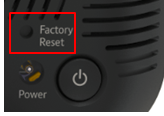
- The factory reset button is on the back of the Hub just above the power socket
- With the Hub switched on, push the reset button for five seconds and then release it
- The Hub will now reset. This can take up to five minutes to complete
- When the light on the front of the Hub has returned to a stable blue colour, you can continue
- To reconnect to the Hub, you'll need to use the default SSID name and password on the back of the Hub
- The admin password will also have been reset to the default value
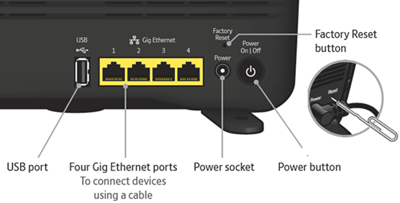
- Find the recessed "Factory Reset" pinhole button on the back of your Hub
- Using a paper clip or similar press the button and hold for 20 seconds. Your Hub lights will go out and your Hub will restart
- Wait a few minutes for the Hub lights to settle. The central Power light will go blue when the Hub is ready to use
After a factory reset, you'll be guided through the Smart Setup on all your devices (like when you first set up your Hub).
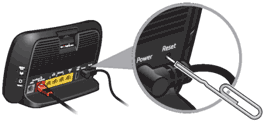
- Find the recessed "Reset" pinhole button on the back of your Hub
- Using a paper clip or similar press the button and hold for 20 seconds. Your Hub lights will go out and your Hub will restart
- Wait a few minutes for the Hub lights to settle. The central Power light will go blue and the Broadband light will be off
After a factory reset, you'll be guided through the Smart Setup on all your devices (like when you first set up your Hub). Find out more about Smart Setup.
- Find the recessed "Reset" button on the back of your Hub
- Using a paper clip or similar press the button and hold for 20 seconds. Your Hub lights will go out and your Hub will restart
- Wait for the Hub's Broadband light to glow solid blue. This may take several minutes.

- Find the recessed "Reset" button on the back of your Hub
- Using a paper clip or similar tool, press the button and hold it for 10 seconds. Your hub lights will go out, and your hub will restart
- Wait for the hub's Broadband light to glow solid blue. This may take a few minutes.