TV Box Pro
This article offers all the information and help needed to set up, make the best use of and manage your TV Box Pro.
About your TV Box Pro
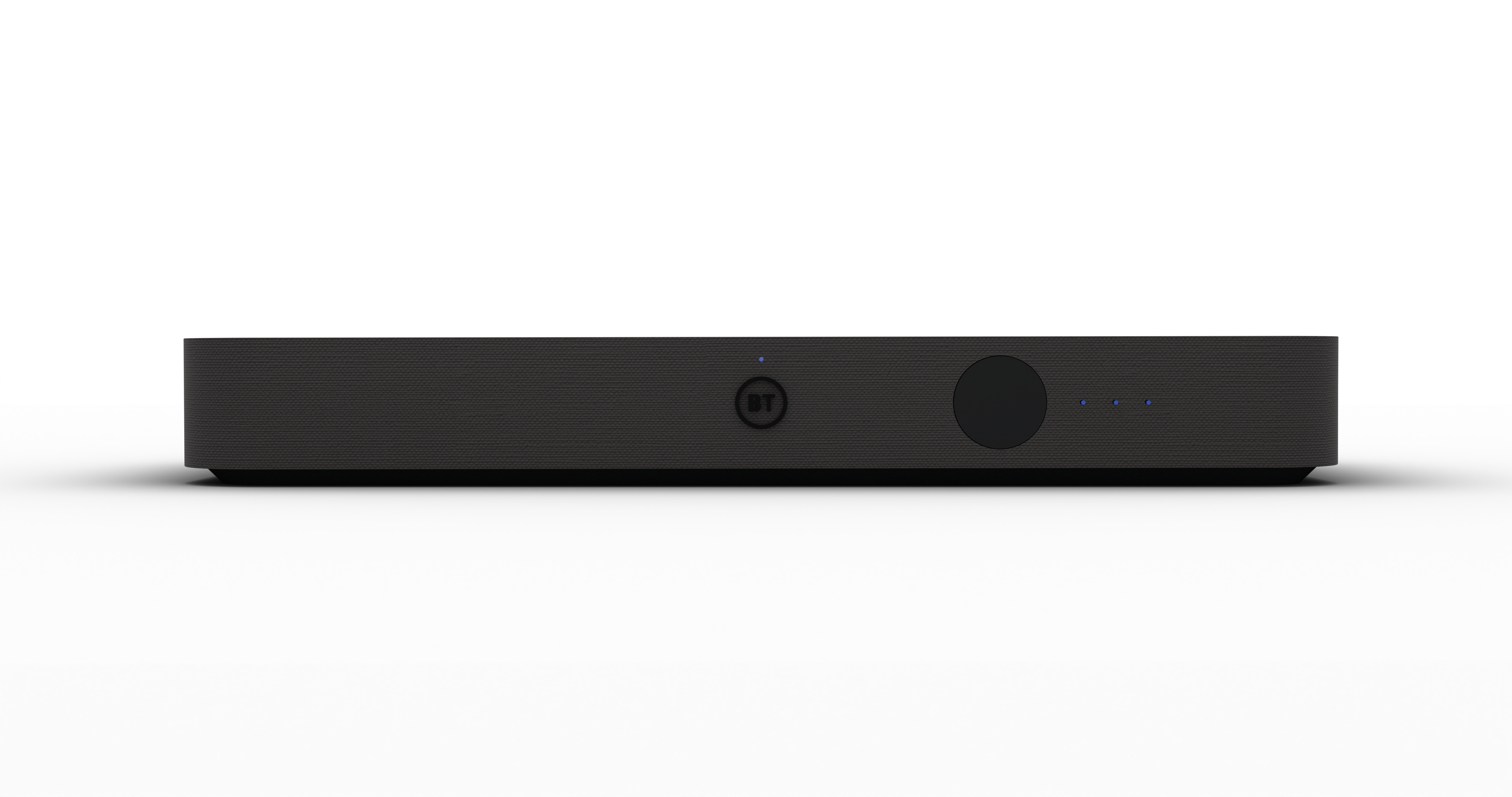
What's in the box

Power supply
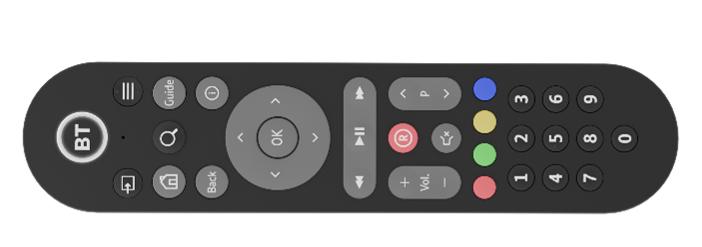
Remote control

User Guide

HDMI cable - connects your TV Box to your TV
Ethernet cable - connect your TV Box to your Broadband Hub if it’s near your TV.
If you're replacing your TV Box Pro, the packaging might not include accessories. You can reuse the ones from your old TV Box Pro.
If new accessories are included, use them to make sure everything works properly.
Want detailed help on setting up your TV Box Pro?
Please have a look at this page Set up your TV Box Pro, which walks through setting up using an Ethernet cable or connecting over Wi-Fi.
Physical description of your device
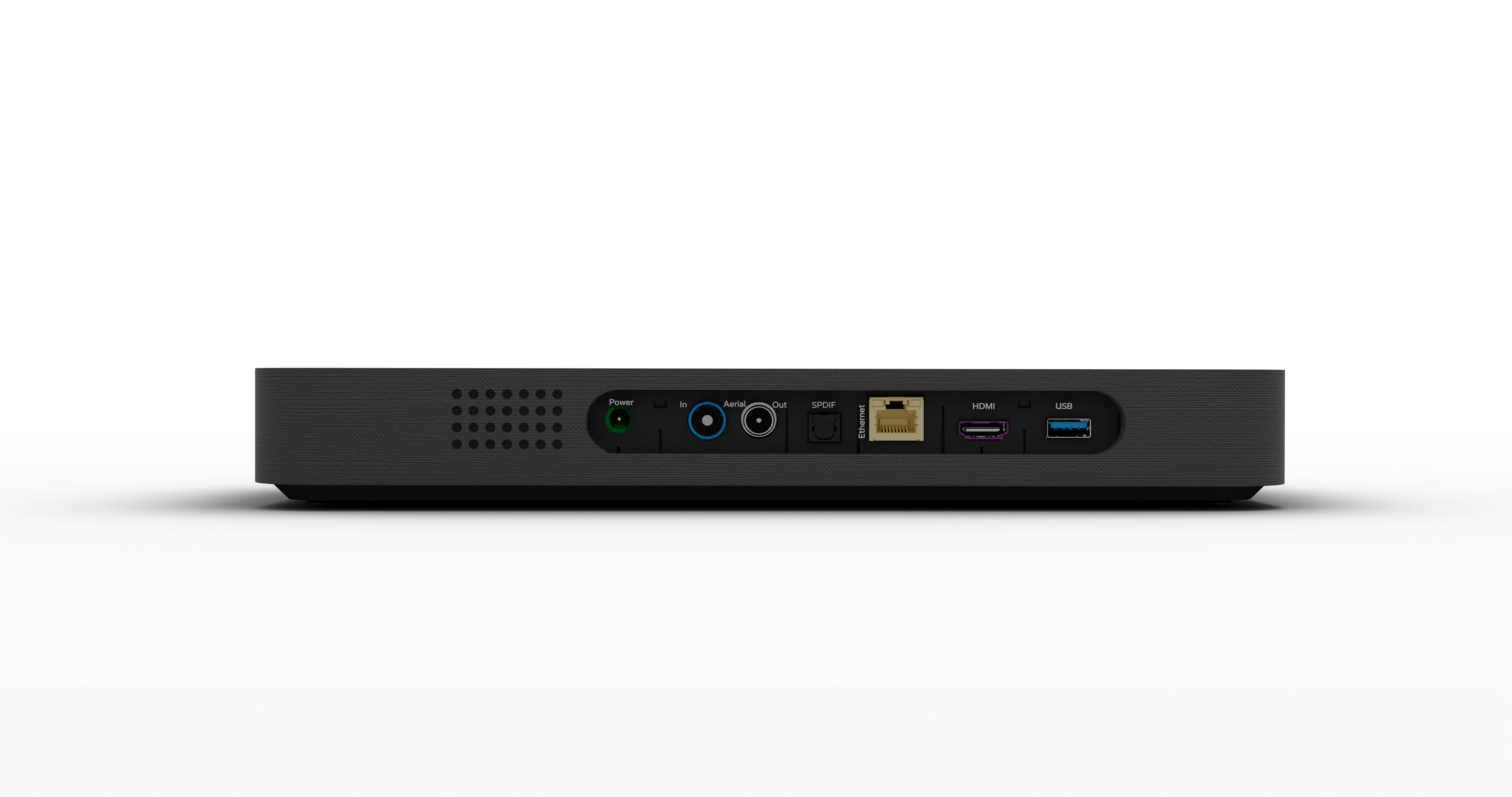
Rear of the TV Box Pro showing the ports.
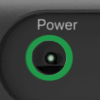
Power connector (green)
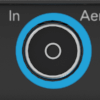
Aerial In (blue) – this is where you plug your aerial cable (not supplied) from the wall
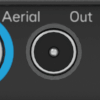
Aerial Out (grey) – if you want to share your TV aerial input signal with another device (cable not supplied)
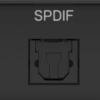
Digital Audio Out (SPDIF) - use for connecting to some surround sound kits.
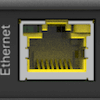
Ethernet (yellow) – if not using Wi-Fi, connect to your Hub using the cable provided.
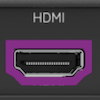
HDMI (purple) – connect to your TV using the cable provided.
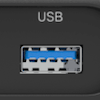
USB – for connecting some accessibility devices, for example, a keyboard.
TV Box Pro buttons

On/Off button.
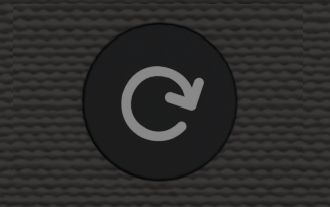
Reset button – on the right side of the box - use to reset your TV Box if you can’t access the user interface.
Set up your TV Box Pro
The quick steps to set up your TV Box Pro are:
- Connect your TV box to your Smart Hub.
- Plug the HDMI cable into the TV box and into your TV.
- Then plug in the power and turn everything on.
Make sure your broadband is working, and your Hub is showing a strong, solid blue or aqua light. You need a good connection to get a TV signal.
For more details, visit this Set up your TV Box Pro page.
Set up using the BT app
BT products are also designed to be set up using the BT app. Scan the QR code below if you don't already have the app.
Scan to get the app from the Apple app store.
Scan to get the BT app from the Google Play store.
TV Box Pro in use
Lights on your TV Box Pro
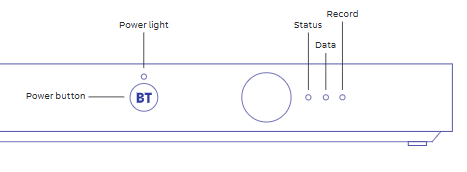
|
Power |
Status |
Data |
Record |
|
|---|---|---|---|---|
|
Box on |
Blue |
Off |
Off |
Off |
|
Box on recording |
Blue |
Off |
Off |
Red |
|
Box in standby |
Off |
Off |
Off |
Off |
|
Box in standby, recording |
Off |
Off |
Off |
Red |
Parent control and payment PINs
Take control over what your kids stumble across (and rent) by setting up a parental control PIN.
Parental control PIN
- To control access to programmes with an age rating.
- The default PIN is 1234.
- You can change it at any time in (Settings).
Payment PIN
To buy films or TV shows on the TV Player. You can have the same PIN for both if you like.
If you forget your payment PIN, call us on 0330 123 4150 or find out how to reset your TV box.
You may need to set up other PINs or passwords to access other players like Amazon or Netflix.
TV Recording
You can record up to two programmes at once when your TV Box is in ‘Internet Mode’. If your box is in ‘Aerial Mode’, you can record four programmes at once. When your TV Box is full, it’ll automatically delete the oldest one you’ve watched. You can lock an old recording to prevent this from happening.
Find out more about Aerial and Internet modes for TV Box Pro.
Accessibility features
Click the top right button of the remote control, and you’ll find a range of accessibility features to help you watch your TV service:
- audio feedback/description
- subtitles
- sign language
Not all broadcasters allow these features, but if they do, you can turn them on/off in Settings.
Select Appearance and you can:
- switch on high contrast
- remove channel logos
- remove transparency
which may make the menus and text easier to read.
You can also use the Zoom feature to make text bigger in the Guide or in Apps, which can be found in More, and switched on or off by selecting OK.
Or you can use a UK plug-in USB keyboard, either alongside the remote or instead of it. Just plug your keyboard into the back of your TV box and use the keys like you would on a remote control.
You can find out more about these at bt.com/tv-accessibility.
Disposing of your old electrical equipment
The UK Government has a legal requirement to minimise the unsorted waste disposal of electrical and electronic equipment and to maximise its separate collection and environmentally sound management. The symbol shown here and, on a product, means you shouldn’t throw it in your normal rubbish at the end of its working life.

This product may contain substances that could be harmful to the environment if it’s not recycled correctly.
This product may contain substances that could be harmful to people or the environment if it’s not recycled correctly. The equipment provided to you will remain the property of BT at all times (excluding outright sale equipment). You’ll need to return it back to us within 60 days of telling us you want to cancel, or we may need to charge you for it. You can do this by following the steps on this page bt.com/returns.
As the environment is important to BT, we can get rid of it in an environmentally friendly way.
If this equipment replaces something similar, then you can also dispose of your old kit by following the instructions above.
Safety notice and care instructions
Important safety and care instructions
Your TV box Pro (model RTIW387) from BT is manufactured to comply with European safety standards. Please read the following instructions carefully before installing and using it.
Installation and location
- For indoor use only in the UK.
- Position all parts, including power adapters, away from heat and sun (e.g. away from radiators, window sills, or other electrical equipment which can get hot).
- Keep the area ventilated (e.g. don’t put in cupboards or back of sofas) and don’t block any vents with objects or thick carpets.
- Keep the device flat on its feet at all times. Not standing it as designed could cause overheating.
- Keep the device and cables out of young children’s reach.
- Only use power adapters provided by BT for this specific device. See BT.com/help for further information or contact our helpdesk if you need a replacement.
- Electronic devices hate liquids; don’t place devices or power adapters in damp areas or near water or splashes.
- This device uses wireless technology; check before using or installing, where restrictions may apply, such as in hospitals.
- The Ethernet port is intended to be connected to devices in the same building and on the same earth circuit.
- When connecting a USB peripheral device, follow the insertion guidelines and don’t use force.
- Product may cause scratches or marks if placed on fragile surfaces (e.g. veneered wood or delicate fabrics); place on a mat if required.
- Don’t use near flammable substances or in a flammable atmosphere (e.g. warehouse or garage).
- Designed for use at room temperatures between 0 and 40ºC.
Care and maintenance
- Treat all parts with care; no shock or vibration, and don’t pull or twist any cables.
- Regularly check your product for damage to ensure small parts aren’t exposed.
- Don’t move your set-top box or suddenly turn off the power while the hard disk drive is running.
- BT won’t be liable for any data corruption on the hard disk drive caused by carelessness or misuse.
- Unplug from the mains socket before cleaning. Dust with a soft dry cloth; no water or solvent.
- Regularly check that objects don’t cover any parts or any vents, which could cause overheating.
- When not in use, store in a dry place and away from extreme heat or cold.
Warnings
- If any parts of your product, power adapters or any cables appear damaged or make unusual noises, discontinue use immediately. Switch off your electrical socket if it is safe to do so and contact our helpdesk.
- Don’t try to open your device or power adapters. There are no serviceable parts and you risk an electrical shock.
- This device has been evaluated for and shown to be compliant with European Guidelines when installed and operated with a minimum distance of 20cm between the unit and your body.
- If you’ve got a pacemaker, please check with your doctor before installation.
Battery safety information
- Only use batteries of the same size and type as originally supplied.
- Take care when disposing of your product. The battery could explode if placed in a fire, a hot oven or is crushed or cut.
- Don’t subject the product to extremely low air pressure, as the battery may explode or leak flammable liquid or gas.
Compliance information
Radio Equipment Directive Declaration of Conformity
Hereby, BT declares that the radio equipment type TV Box (Model RTIW387) is in compliance with Radio Equipment Regulations 2017 and The Product Security and Telecommunications Infrastructure (Security Requirements for Relevant Connectable Products) Regulations 2023. The full text of the UK declaration of conformity is available at bt.com/tvboxinfo.
Restrictions
This radio equipment is subject to certain restrictions when it is placed on the market in:
Belgium (BE), Bulgaria (BG), Czech Republic (CZ), Denmark (DK), Germany (DE), Estonia (BT), Ireland (IE), Greece (EL), Spain (ES), France (FR), Croatia (HR), Italy (IT), Cyprus (CY), Latvia (LV), Lithuania (LT), Luxembourg (LU), Hungary (HU), Malta (MT), Netherlands (NL), Austria (AT), Poland (PL), Portugal (PT), Romania (RO), Slovenia (SI), Slovakia (SK), Finland (FI), Sweden (SE), Northern Ireland (UK(NI)), Norway (NO), Switzerland (CH), Iceland (IS), Turkey (TR), Lichtenstein (LI).
Wi-Fi 5 GHz: The frequency band 5150-5350 MHz is limited to indoor use.
This radio equipment is also subject to certain restrictions when it is placed on the market in United Kingdom (UK).
In accordance with the relevant statutory requirements in the UK, the 5150 to 5350 MHz frequency range is restricted to indoor use in the United Kingdom.
Radio transmission information
TV Box Pro
| Frequency in range (GHz) | Max power in the range (dBm) |
| 2.4 - 2.4835 | 20 |
| 5.15 - 5.35 | 23 |
| 5.47 - 5.725 | 30 |
| 5.725 - 5.850 | 14 |
Remote Control
| Frequency in range (GHz) | Max power in the range (dBm) |
| 2.4 - 2.4835 | 3.9 |
To turn off the set-top box’s Wi-Fi, simply plug in the Ethernet cable provided between your set-top box and your Gateway.
Power consumption and power supply information
Information can be found at bt.com/tvboxinfo.
PSTI and Software Support
Information can be found at bt.com/tvboxinfo.
Opensource software
The TV Box (Model RTIW387) contains code that is covered by the GNU (General Public Licence (GPL). In accordance with the GPL, BT has made the relevant code available for download at bt.com/opensource.
To find the support period for your device or to report security issues, go to: bt.com/terms/otherlegalstuff.
Trademarks
YouView
YouView is subject to terms of use, suitable broadband speed, TV aerial and coverage. See www.youview.com. Software contained in this device is licensed on a limited basis. All other rights are reserved. YouView and the YouView logo are trademarks of YouView TV Limited and are used under licence. © YouView TV Limited 2010–2026. All logos and content images are trademarks and/or copyright of their respective owners. Images are for illustration only and may differ on screen. Content is subject to availability.
Dolby
Manufactured under license from Dolby Laboratories. Dolby, Dolby Audio and the double-D symbol are trademarks of Dolby Laboratories Licensing Corporation.
HDMI
The terms HDMI, HDMI High-Definition Multimedia Interface, and the HDMI Logo are trademarks or registered trademarks of HDMI Licensing Administrator, Inc.
Bluetooth
Bluetooth® is a registered trademark of Bluetooth SIG, Inc.
DVB
DVB and the DVB logos are trademarks of the DVB Project.
HEVC ADVANCE
Covered by one or more claims of the patents listed at patentlist.hevcadvance.com
MPEG LA AVC
This product is licensed under the AVC patent portfolio license for the personal and non- commercial use of a consumer to : (i) encode video in compliance with the AVC standard (“AVC-video”) and/or (ii) decode AVC video that was encoded by a consumer engaged in a personal and non- commercial activity and/or was obtained from a video provider licensed to provide AVC-video.
No license is granted or shall be implied for any other use. Additional information may be obtained from MPEG LA, LLC see www.mpegla.com
Microsoft PlayReady
This product contains technology subject to certain intellectual property rights of Microsoft. Use or distribution of this technology outside of this product is prohibited without the appropriate license(s) from Microsoft.
Content owners use Microsoft PlayReadyTM content access technology to protect their intellectual property, including copyrighted content. This device uses PlayReady technology to access PlayReady protected content and/or WMDRM-protected content. If the device fails to properly enforce restrictions on content usage, content owners may require Microsoft to revoke the device’s ability to consume PlayReady-protected content. Revocation should not affect unprotected content or content protected by other content access technologies. Content owners may require you to upgrade PlayReady to access their content. If you decline an upgrade, you will not be able to access content that requires the upgrade.
Intertrust
Portions Copyright © 2004 – 2018, Intertrust Technologies Corporation and its licensors. All rights reserved.
Others
All other brands and logos are trademarks or registered trademarks of their respective owners.
TV Box Pro User Guide
BT TV Box Pro user guide (243kb)