Here you'll find help with changing the admin password for your Hub.
Choose your relevant Hub from the list below to see your Hub-specific instructions for changing the admin password.
Forgotten your admin password after previously changing it?
If you’ve already changed your admin password and can’t remember it, you can use the password override option on some older BT Hubs to create a new one without losing your Hub settings.
However, if you have a newer BT Hub (Smart Hub 2 or later), it will not have a password override feature, and you may need to factory reset it using the pinhole reset button on the back. This will restore your Hub to its original settings, including passwords and personalised settings, and if you have a BT Digital Voice handset you may lose your contacts.
Back up your Digital Voice contacts before you factory reset your Hub.
How to change your admin password on your BT Hub
The first time you open your Hub Manager, you'll be prompted to change the password. Simply follow the easy on-screen instructions.
If you've set up your password and want to change it, just follow the steps for your BT Hub below.
If you forget your password, you can use the override feature to set a new one and add a password hint to help you remember it in the future.
You can change the password on your BT Smart Hub 3 via the Hub manager or the My BT app.
Using the Hub Manager:
- Start by opening a new web browser on a device connected to your Hub and type 192.168.1.254 in the address bar - this will open the Hub Manager.
- Due to security compliance regulations, you will see a message advising that you need to switch to HTTPS. This is expected and nothing to be concerned about. Follow the instructions to allow secure access to the Hub Manager.
- Before you can access any features, you will be prompted to enter the current admin password, which you can find on the pull-out settings card on the back of the Hub.
(Unless you have changed it). - Select Advanced Settings – admin password.
- Remember, once you make any changes, you'll need to save them, unless your Hub Manager version supports autosave.
- You may be prompted that your chosen password isn’t as secure as it could be. You'll be given some useful tips for making your password more secure. To continue with the password you want, select Accept.
Using the My BT app
- Select ‘View details’ from the Broadband tab.
- Find and select the Hub Manager tile.
- Complete the setup steps to pair your app with the Hub (if it's your first visit to the app).
- From the dashboard, select Smart Hub 3.
- From the following menu, select Change admin password.
You can change the password on your BT Smart Hub 2 via the Hub manager or the My BT app.
Using the Hub Manager:
- Start by opening a new web browser on a device connected to your Hub and type 192.168.1.254 in the address bar - this will open the Hub Manager.
- Select Advanced Settings.
- Select System.
- Enter the admin password. Unless you've changed it, you'll find the default password on the back of your Hub, on the Hub settings card. If you have changed it and now forgotten it, you can use the password override feature to set up a new password without losing all your personal Hub settings and configuration.
- To change your Admin password, you'll be asked to enter your current password first.
- Then enter your new password twice - remember the Admin password is case-sensitive and must be 5-20 characters long.
- You can also enter a password hint (for example, "My first pet's name"). If you forget your password when you need to enter it later, you can ask the Hub Manager to display this hint to help you. If you still can't remember your password, the Smart Hub 2 has a password override feature that lets you create a new password without losing your personal Hub settings and configuration.
- Remember, once you make any changes, you'll need to save them. Click Save.
- You may be prompted that your chosen password isn’t as secure as it could be. You'll be given some useful tips for making your password more secure. To continue with the password you want, select Accept.
Using the My BT app
- Select View details from the Broadband tab.
- Find and select the Hub Manager tile.
- Complete the setup steps to pair your app with the hub (if it's your first visit to the app).
- From the dashboard, select Smart Hub 3
- From the following menu, select Change admin password.
- To change the admin password on your BT Smart Hub, start by opening a new web browser on a device connected to your Hub and type 192.168.1.254 in the address bar - this will open the Hub Manager.
- Click Advanced Settings.
- Click System.
- Enter the admin password. Unless you've changed it, you'll find the original password on the back of your Hub, on the Hub settings card. If you have changed it and now forgotten it, you can use the password override feature to set up a new password without losing all your personal Hub settings and configuration.
- To change your Admin password, you will be asked to enter your current password first.
- Then enter your new password twice.
Remember, the Admin password is case-sensitive and must be 5-20 characters long. - You can also enter a password hint (for example, "My first pet's name"). If you forget your password and need to enter it later, you can ask the Hub Manager to display this hint. If you still can't remember your password, the Smart Hub has a password override feature that lets you create a new password without losing your personal Hub settings and configuration.
- Remember, once you make any changes, you'll need to save them. Select Save at the end of the process.
- You may be prompted that your chosen password isn’t as secure as it could be. You'll be given some useful tips for making your password more secure. To continue with the password you want, select Accept.
- Select Settings.
- Enter the current admin password.
- Select the Admin Password menu.
- Enter the current admin password. (If you haven't previously changed it you'll find the default password on the label on the back of the Hub).
- Enter the new password twice.
- You can also enter a password hint (for example, "My first pet's name"). If you forget your password when you need to enter it later you can request the Hub Manager to display this hint to help you. If you still can't remember your password, the Hub 4 and Hub 5 have a password override feature that lets you create a new one.
- Select Change password.
- Select Settings.
- Enter the current admin password.
- Select Admin Password.
- Enter the current admin password.
- Enter the new password twice.
- You can also enter a password hint (for example, "My first pet's name"). If you forget your password when you need to enter it later, you can request the Hub Manager to display this hint to help you. If you still can't remember your password, the Hub 3 has a password override feature that lets you create a new one.
- Select Change password.
How to reset your admin password on your BT Hub if you've forgotten it
Whenever you need to access settings on the Hub Manager on your BT Hub, you'll be asked to enter a password. This protects you against other people getting access to important settings.
Have you set up your admin password and then forgotten it? Here's how to use the override feature to set up a new one, along with a password hint to help you remember it later.
- Open a new web browser on a device connected to your Hub and type 192.168.1.254 in the address bar. This will open the Hub Manager.
- Press and hold the Wireless WPS button until the light on the front of your BT Smart Hub 2 flashes blue.
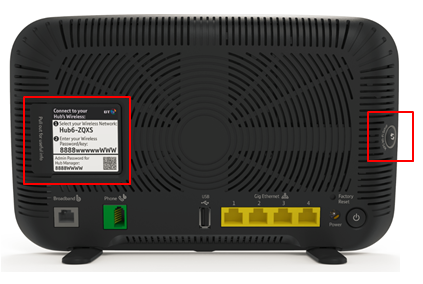
- The Hub light will then flash for 2 minutes, allowing you to enter all required details during that period.
- The default wireless key and admin password are on the settings card on the back of your Hub. When you've finished, click the Save button. The power light will return to a steady blue.
- Your password is case sensitive and must be 5-20 characters long.
- You should include a combination of letters and numbers.
- Your new password shouldn't be anything that someone else can easily guess.
- Open a new web browser on a device connected to your Hub and type 192.168.1.254 in the address bar. This will open the Hub Manager.
- Press and hold the Wireless WPS button until the light on the front of your BT Smart Hub flashes blue.

- The Hub light will then flash for 2 minutes, allowing you to enter all required details during that period.
- The default wireless key and admin password are on the settings card on the back of your Hub. When you've finished, click the Save button. The power light will return to a steady blue.
- Your password is case sensitive and must be 5-20 characters long.
- You should include a combination of letters and numbers.
- Your new password shouldn't be anything that someone else can easily guess.
- Go to the Hub Manager by going to https://bthomehub.home or 192.168.1.254 in your web browser.
- On the password screen, click the Password Override button. A new screen appears.
- Press and hold the Wireless WPS button on top of your Hub 5 for 20 seconds until the central Power light starts to flash blue.

This means the Hub is now in Password Override mode. You've got two minutes to put in the required information:
- Your Hub's wireless key: you'll find the default key on the Hub settings card on the back of your Hub or on the label under the base of your Hub.
- Your Hub's serial number: you'll find this on the label under the base.
- Enter your new password.
- Re-enter your new password.
- Enter an optional password hint, such as a word or phrase that will help you remember your password (such as, "Mum's maiden name").
- Click on Use password override to create your new password.
- Go to the Hub Manager by going to https://bthomehub.home or 192.168.1.254 in your web browser.
- On the password screen, click the Password Override button. A new screen appears.
- Press and hold the Wireless WPS button on top of your Hub 4 for 20 seconds until the central Power light starts to flash blue.
This means the Hub is now in Password Override mode. You've got two minutes to put in the required information:
- Your Hub's wireless key: you'll find the default key on the Hub settings card on the back of your Hub or on the label under the base of your Hub.
- Your Hub's serial number: you'll find this on the label under the base.
- Enter your new password.
- Re-enter your new password.
- Enter an optional password hint, such as a word or phrase that will help you remember your password (such as, "Mum's maiden name").
- Click on Use password override to create your new password.
On the password screen, you'll see a Password Override button. Click this button and a new screen will be displayed. Then do the following.
- Press and hold the Wireless WPS button on the back of your Hub 3 for 20 seconds.

This will put the Hub into Password Override mode. All three lights on the front of the Hub will flash blue. You've then got two minutes to put in the required new information.
- Enter the Wireless key of your Hub. If you haven't changed it, you can find the default key on the pull-out Hub Settings Card, or on the label under the base of your Hub.
- Enter the Serial Number of your Hub. This can be found on the label under the base.
- Enter your new password.
- Re-enter the new password.
- If you like, you can set a password hint, such as a word or phrase, to help you remember the password. For example, "Mum's maiden name".
- Select on Use password override and create a new password.
Still need help?
For more advice on how to get the best from your BT Hub, visit Help for Hubs
Or, if you’ve got one of our older Hubs, why not buy our latest BT Smart Hub?